On this page
Most loyalty dashboards lead with one number: how much members spent. I wouldn't trust it first.
Reperks enrolls a customer the moment they register an account. So a store can post a very high membership rate simply because most repeat buyers have accounts, not because the program moved anyone. Loyalty Revenue tells you how much members spent, not how much the program changed what they did.
Are you making money, or handing discounts to people who would have bought anyway?
That's the question underneath a loyalty program, and it's the one this report is built to answer.
Here's how sure we are that another number, points issued, isn't the one to check either. Across OnVoard stores we have a platform-wide total of points awarded. It's over 1B. We've never published it and we're not going to, because a point is a unit each merchant invents. One store gives 1 point per dollar, the next gives 100, and adding them together produces a big number that means nothing at all.
So instead of reading the 4 tabs left to right, run 4 checks: did the order earn points, did those points get spent, did the reward make it to checkout, and do redeemers buy differently from everyone else. Roughly in that order.
1. Did the order earn points?
Start with Order Earning Rate, on Overview.
It's the share of eligible orders that actually earned points. If your program is supposed to award points on every paid order and this number is low, stop there. Everything else on the report is downstream of a program that isn't reaching the orders you expected it to.
Check the earning rule, the customer match and the order status before you touch the reward itself. And don't grade it against some universal benchmark: if you only award points on certain order types, compare it against your own rules, not a number that assumes every store works the same way.
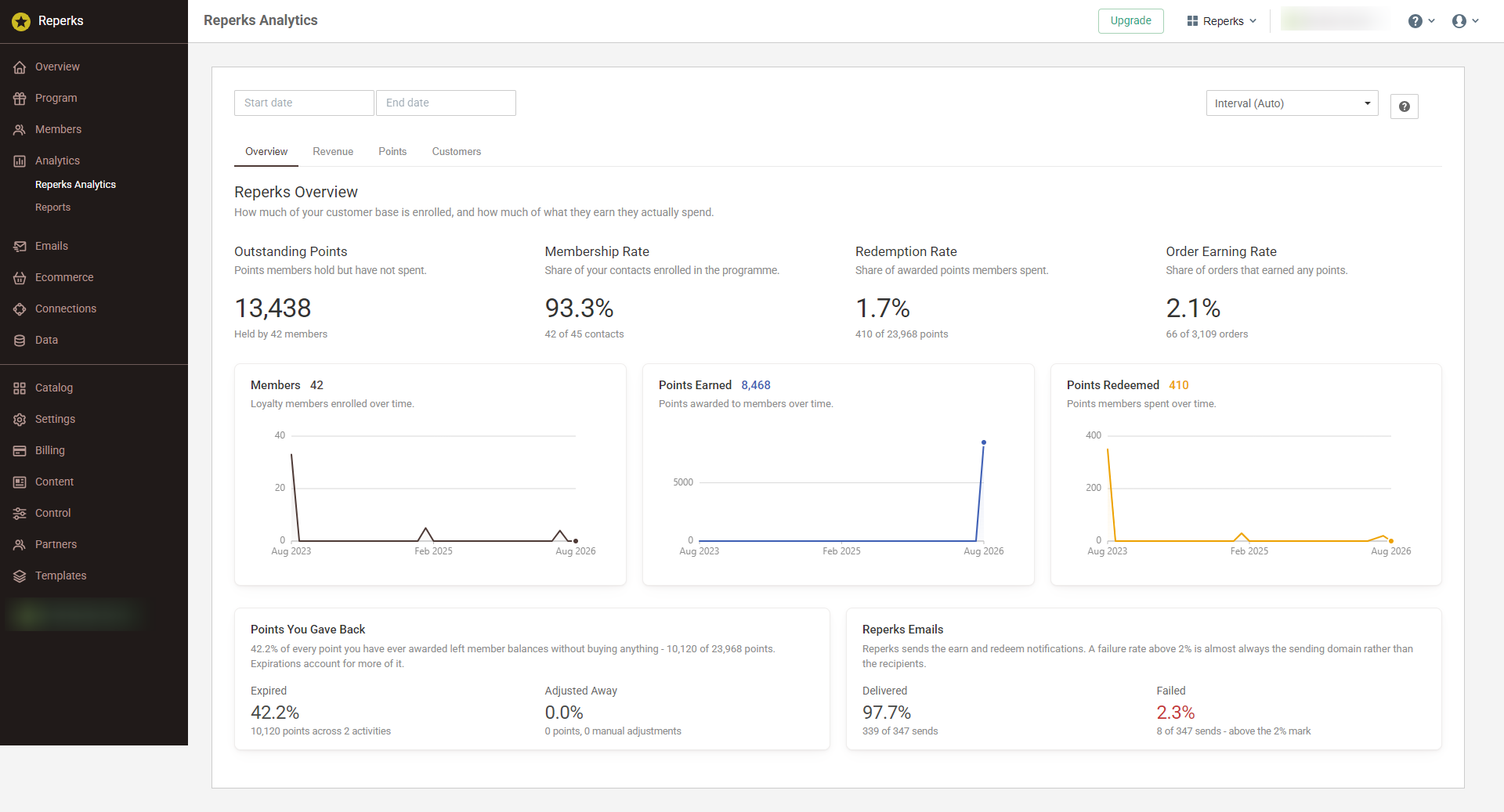
The Overview tab. Order Earning Rate sits beside Membership Rate, Redemption Rate and Outstanding Points.
I wanted this one on the first screen because boring failures are the expensive kind. A program can have members enrolled, points configured and rewards live, and still miss the event that was supposed to award them.
2. Did the points get spent?
Then Redemption Rate: the share of every awarded point that's eventually been spent.
The denominator is worth knowing. Awarded points include both points earned through your rules and points you granted by hand. If the question is where the value you handed out ended up, both belong in the same pool.
Where Points Went makes it harder to misread, because it splits the same pool into redeemed, expired and still outstanding.
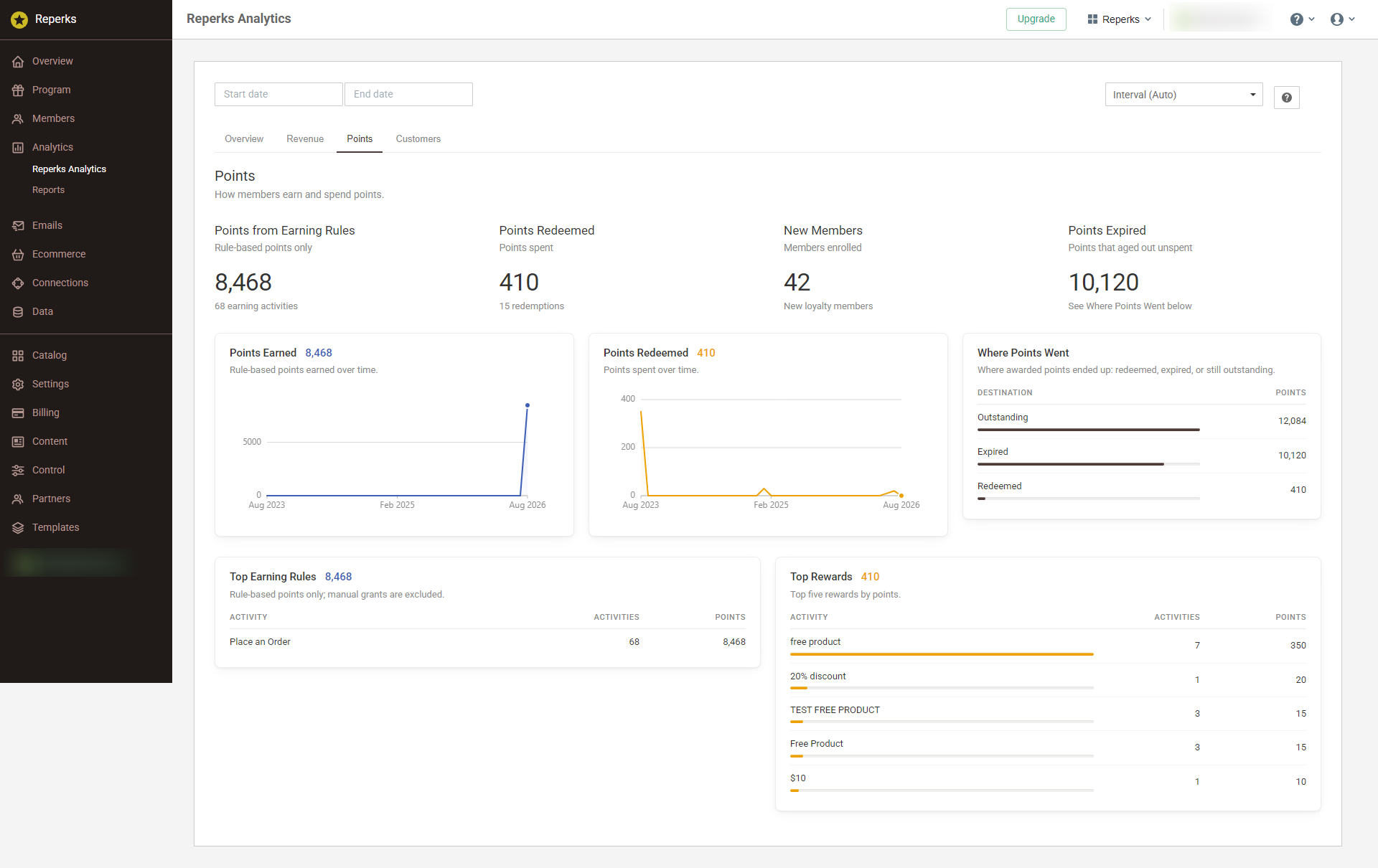
The Points tab. What was earned, what was redeemed, and where the rest ended up.
Low redemption looks cheap, since fewer redeemed rewards means fewer discounts given away. It isn't free, though: points sitting until they expire aren't creating the moments the program exists to create. Overview calls the uglier version out directly, as Points You Gave Back: points that left a balance through expiry or a manual adjustment, for nothing.
The 2 cards below give you both sides of that economy. Top Earning Rules shows which activities are issuing the points, and Top Rewards shows which rewards consume them. If one rule is flooding the program while only one reward ever gets claimed, that's a far more useful finding than "members earned a lot of points".
Check that before making points easier to earn. Issuing more points doesn't help if the ones already out there aren't reaching a reward anyone wants.
One scope detail is deliberate: Outstanding Points is a live balance, and Redemption Rate comes from the full points ledger. Neither moves just because you changed the report's date range, and neither should.
3. Did the reward make it to checkout?
A redemption isn't a sale - not yet. When a member spends points, Reperks issues a reward code. Reward Usage Rate, on Revenue, tells you how many of those issued codes later showed up on an order. Beside it, Reward Revenue is the revenue on orders that actually carried one, matched by the code itself rather than assumed from who placed the order.
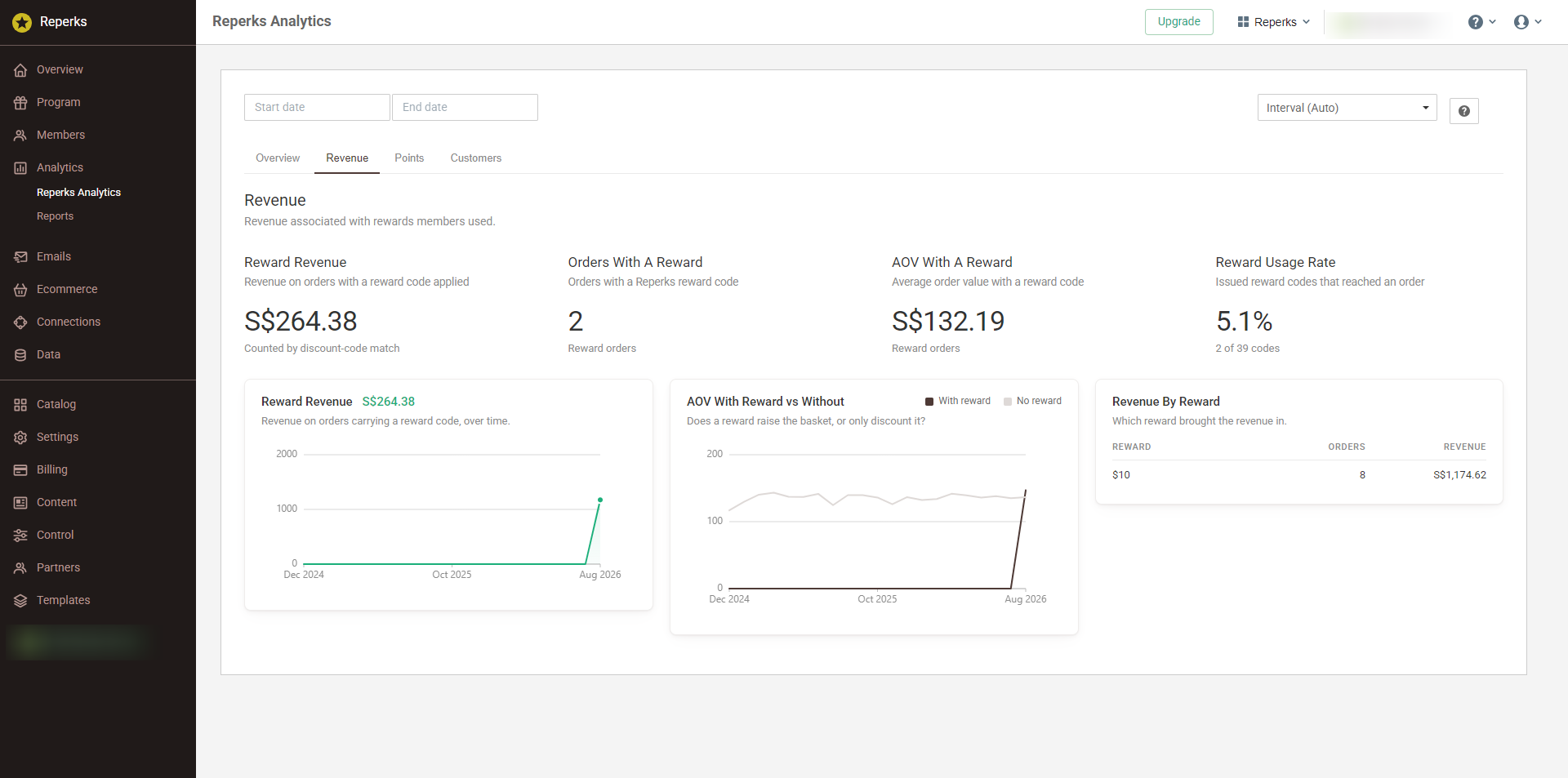
The Revenue tab. Reward Usage Rate closes the gap between a reward being claimed and the code reaching an order.
A code on the order proves the reward got used. It doesn't prove the customer would have walked away without it. Work it in order: points spent, code issued, code used, order value. Revenue By Reward then shows which specific reward is actually pulling its weight.
A reward that gets claimed constantly but rarely reaches checkout has a different problem than one nobody claims at all, even though both can show the same low usage number. They need different fixes.
4. Do redeemers buy differently?
This is the Customers tab. Spend the most time here.
Customer Segments puts redeemers beside non-redeemers on the same 3 measures: average annual spend, purchase frequency and AOV.
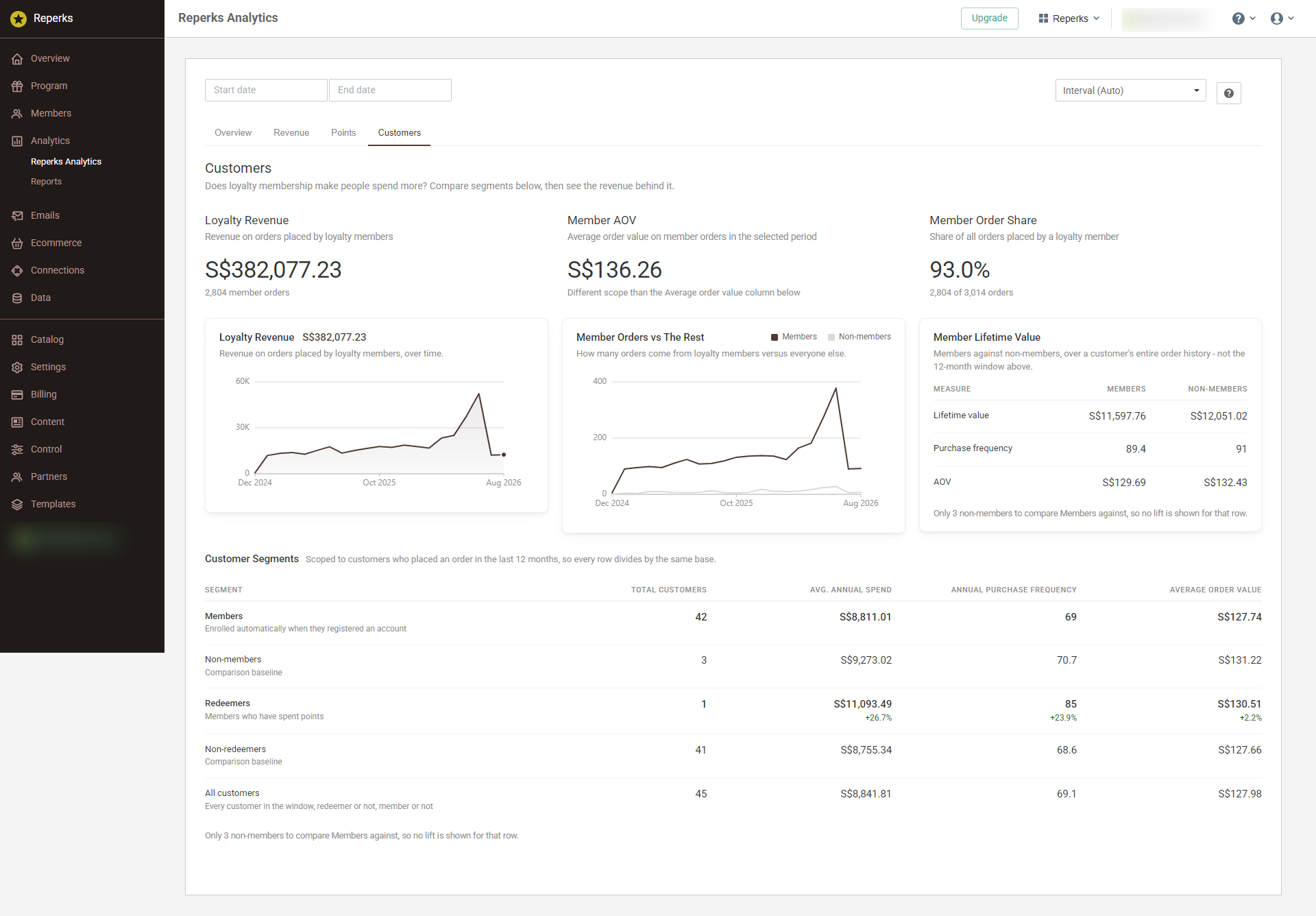
Customer Segments: redeemers against non-redeemers, members against non-members, on spend, frequency and AOV.
We trust that cut more than members against non-members, because membership isn't a clean treatment group here. Reperks enrolls people at account registration, so "member" mostly means registered customer and "non-member" mostly means guest checkout. Comparing member against non-member tells you more about who creates an account than about what the program did.
The screenshot is a good example of why we won't fake certainty. This demo account shows 42 members and 3 non-members. The table still prints both rows, and it still refuses to show a lift for Members, because a comparison side of 3 people isn't a finding, it's whoever those 3 people happened to be. Redeemers against non-redeemers gets the same rule: below 10 customers on the comparison side, we show the values and withhold the percentage. 10 isn't a significance test, it's a floor below which a couple of shoppers can decide the headline.
We'd rather show less than show something false - even when it costs us a more flattering screenshot, like this one.
The channel most programs underuse
One number from our own data, since it's relevant and it surprised us.
Across OnVoard merchants, Reperks emails, the earn and redeem notifications most programs treat as plumbing, drive $5.57 of revenue per delivered email, against a blended average of $2.16 across every kind of email we send. More than double.
The message lands at the one moment a customer is already thinking about you, because they just earned or redeemed something. Nothing on a marketing calendar is timed that well. One caveat: those emails open at roughly the rate everything else does. This isn't about grabbing more attention. It's about timing what you send.
When you need the actual rows
The dashboard answers whether the program is working. Sometimes you want the underlying data instead, because the question you have isn't one the report asks.
That's Reports, sitting under Analytics in the sidebar. 3 exports: Members, Reward coupons and Points activity.
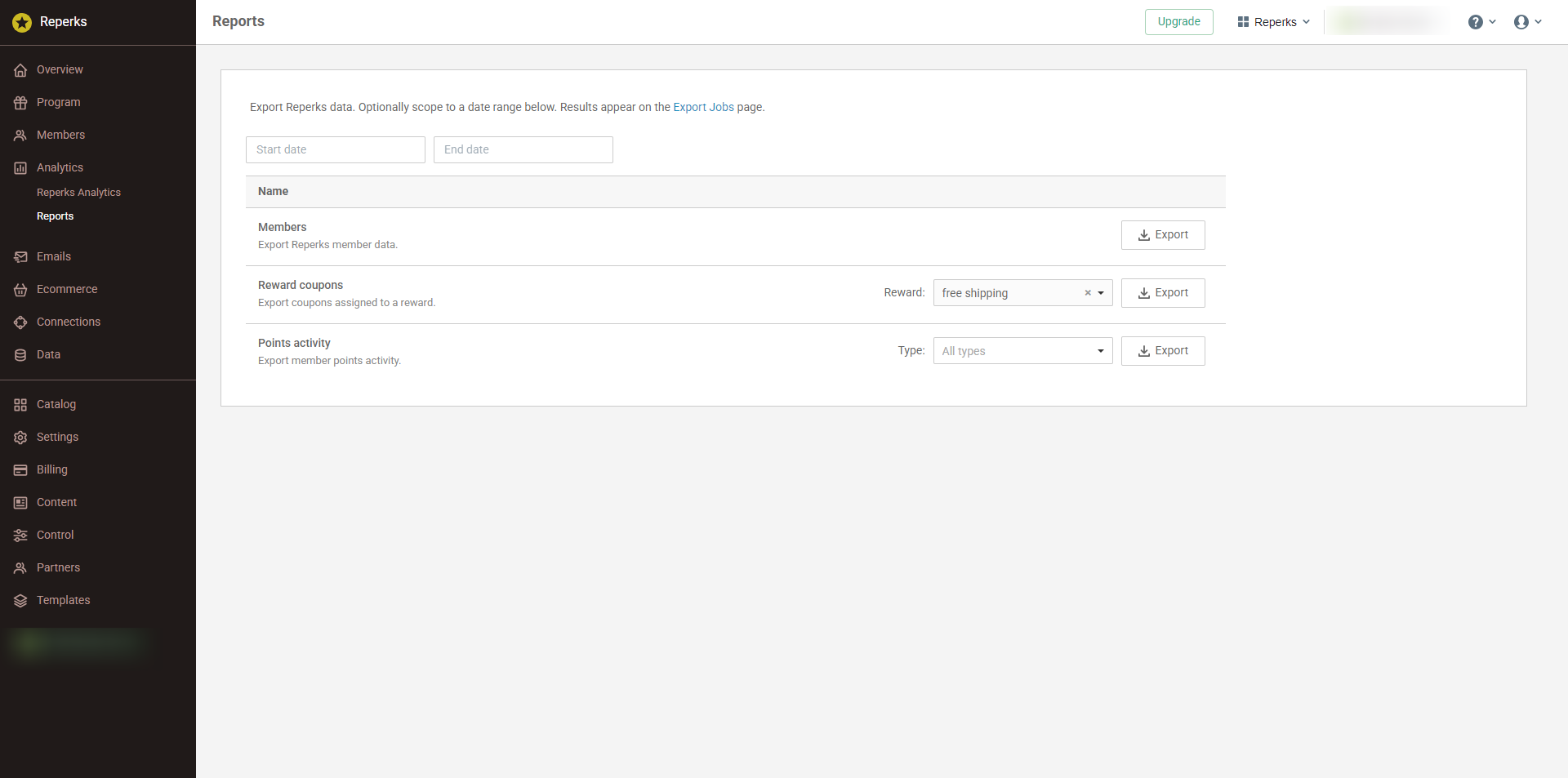
Reports: 3 exports, an optional date range across all of them, and a type filter on points activity.
The date range at the top scopes all 3. Points activity also takes an activity type filter, so "everything redeemed last quarter" is a filter rather than a separate report you have to go find. Reward coupons asks which reward first, because a coupon export without one is just your entire coupon table.
Exports run in the background and land on the Export Jobs page, so a big members export doesn't tie up the tab you're working in.
Worth doing today
Once a month, in this order.
Order Earning Rate first. If the program isn't reaching orders, nothing below it means anything.
Redemption Rate second, because points that sit until they expire aren't savings - they're points nobody used.
Reward Usage Rate is where the leak usually turns out to be. Reward claimed, code never reaches an order.
Redeemers against non-redeemers last. That's the one that answers the question you opened with.
Open Analytics and check Order Earning Rate first. If it doesn't match how your program is configured, fix that before you try to explain anything further down the page.