Conditional rendering lets a block, or a whole row, show only to the people you choose. One email, one send, but different readers see different content.
The best use: show each person the products they abandoned at checkout, or the ones they bought before. Inside the newsletter you already send.
Here's what that looks like, in the order worth building it.
Show each person the items they abandoned at checkout
Set a Product List block to Formula and pick Abandoned Checkout. Then add the rule: Visibility, Show when, checkout started recently with no order after it.
These are your highest-intent shoppers. They picked the items and got as far as checkout, so showing them those exact items is the easiest sale in the email.
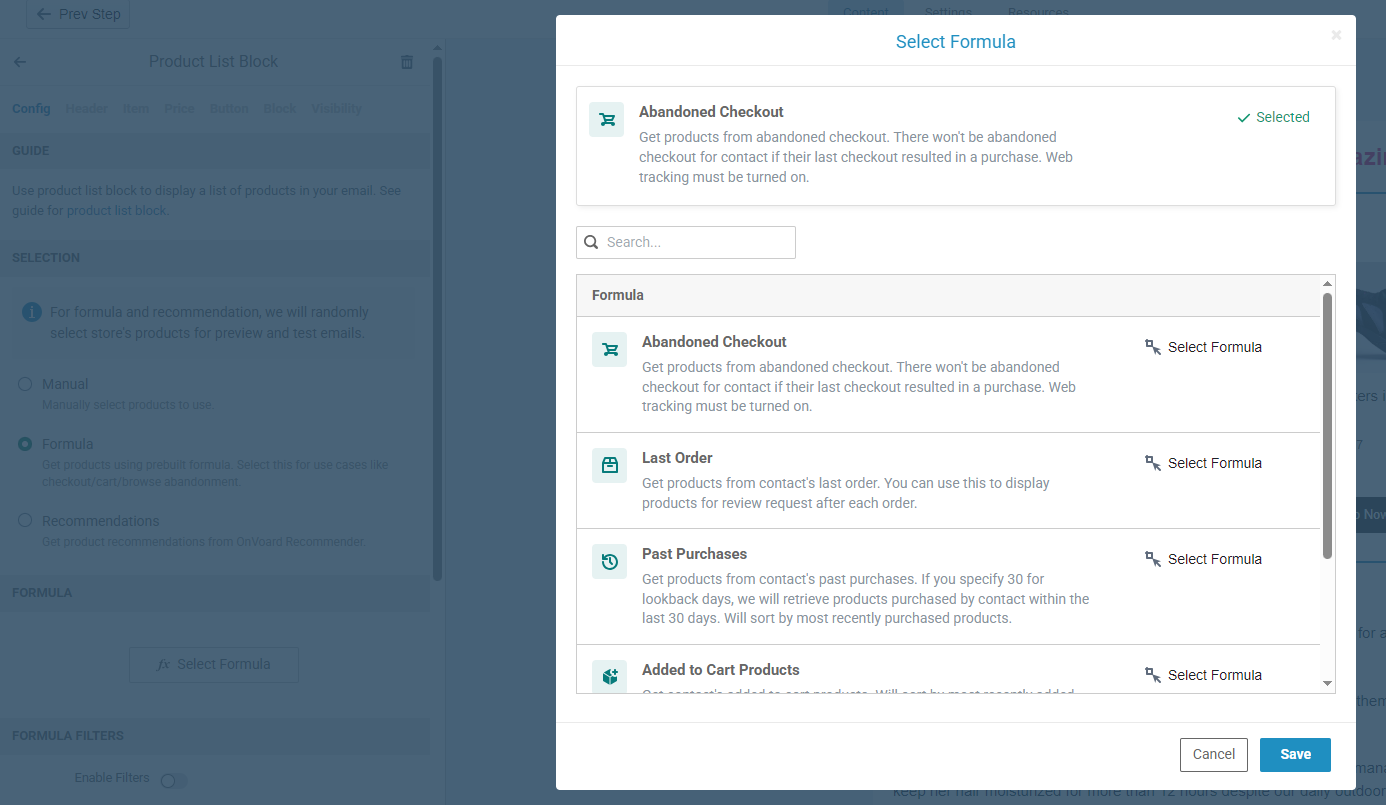
Product List block set to Formula, with Abandoned Checkout selected in the formula picker
If their last checkout ended in a purchase the formula returns nothing, so you won't chase someone who already bought.
Show buyers the products they already bought
Same block, a different formula. Past Purchases, with lookback days set to match how long your product lasts, so a consumable comes round in 30 days and something durable in a year. Then the rule: Show when Num Valid Orders greater than 0.
Customers repurchase what they already liked. It's why Amazon puts a "buy it again" row in front of you, and it's the easiest revenue in your list, because there's no persuading left to do.
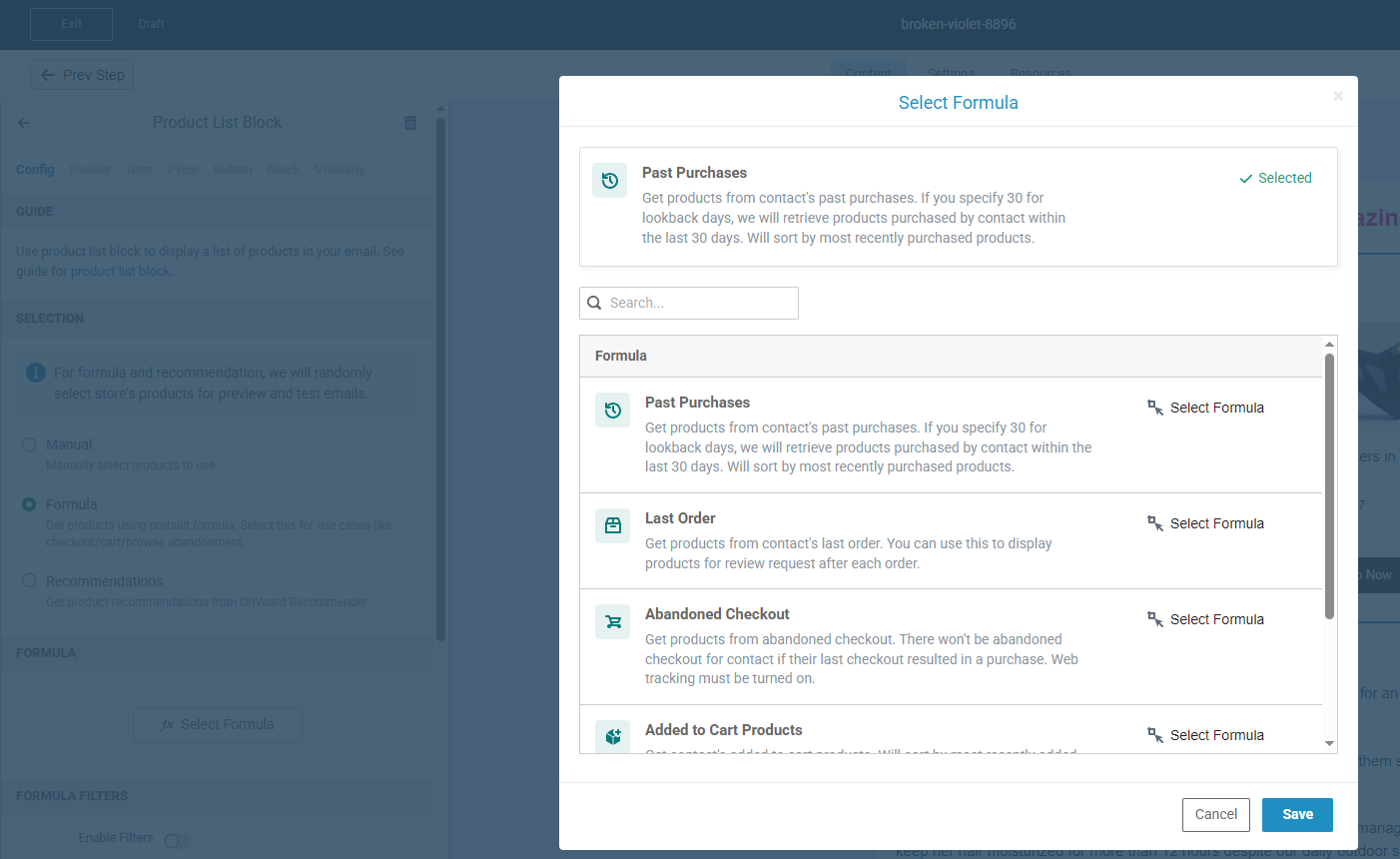
The same formula picker with Past Purchases selected
That second rule is the one doing the work. It limits the block to people who have actually bought something, so anyone who never ordered doesn't get an empty section. Raise the number above 0 if you only want repeat customers.
Cart, browse and the order they just placed
The same pairing covers every other stage of intent.
Added to Cart Products. A full cart is a decision they haven't finished, so pair it with the cart activity and your newsletter handles cart recovery too.
Viewed Products. They were interested enough to look. Pair it with the product viewed activity.
Last Order. Reviews come easiest right after delivery, which makes this the right block for a review request.
Want something looser than a specific list? Set the block to Recommendations with a base of Contact Activities and you get products related to what they viewed or bought. That's your "you may be interested" row.
One caveat worth knowing before you build: the abandoned checkout, cart and viewed formulas need web tracking turned on. Without it the block is empty.
How to set a visibility rule
Select a block and open Visibility in the sidebar. For a whole row, select the row and open its Visibility tab. Set Display:
Always show. The default. Everyone sees it.
Show when. Only people who match your rule see it.
Hide when. People who match your rule don't see it.
Then build the rule. It's the same builder you use for segments and workflows, so you can match on a property, an activity, a list, a segment or a tag. Nothing new to learn.
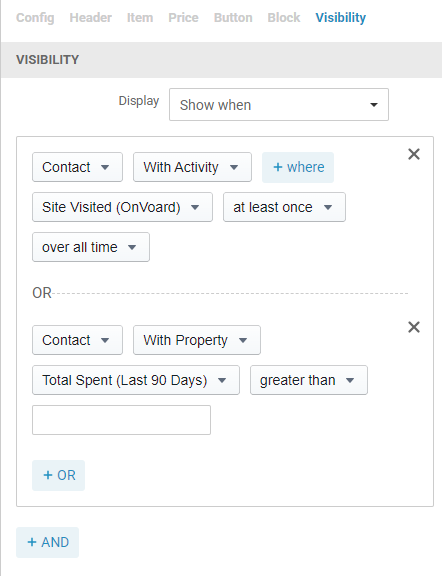
The Visibility tab in the email editor, with Display set to Show when
Blocks with a rule get a Conditional tag, so you can see at a glance which ones aren't shown to everybody.
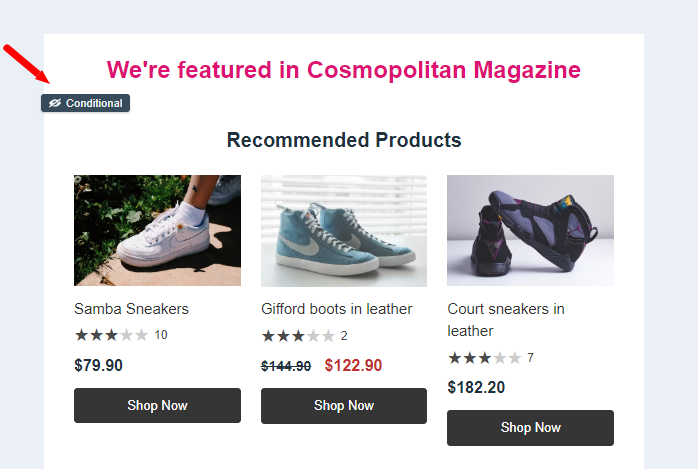
A row carrying the Conditional tag in the email editor
Conditional content beyond products
A conditional block belongs in the emails you already send. Put a birthday offer in your regular newsletter and only the people with a birthday coming up see it. No separate campaign, no separate list.
Only show the birthday offer to recipients with a birthday coming up. Days Until Next Birthday is the rule, and the block can stay in every email you send.
Hide the discount from your best customers. They'd buy without it. Set the coupon block to Hide when Total Spent (Last 365 Days) greater than your number. They still get the email, you keep the margin.
Only show the win-back offer to recipients who haven't bought in 90 days. Total Spent (Last 90 Days) equal to 0. Everyone else sees a loyalty thank-you in the same slot.
Only show the review request to recipients who bought recently but haven't reviewed. 2 conditions: Last Order Placed At inside your delivery window, and Last Reviews Submitted At not set.
Country, EU status, loyalty enrollment and opt-in state all work the same way, and a rule can match a segment, list or tag you already built.
Why your preview shows everything
A preview has no recipient, so every conditional block shows, and test sends do the same. What you see there isn't what your list will get.
To check a rule, look at who matches it, the same way you'd check a segment.
If a rule breaks, the block shows. We made it fail open so a broken rule never drops content from your email silently. Worst case, someone sees a block that wasn't meant for them, which is the visible and recoverable kind of mistake.
Worth doing today
Start with the abandoned checkout block, because it's the one that pays for itself fastest. Put it in the newsletter you send most often and it starts recovering checkouts on its own.
The full walkthrough, including every condition you can match on, is in the help center.